Color-coded content controls
When an Issue field is configured as a List field with colors assigned to each value, Dradis can apply those colors to your Word report automatically. Two special content control tags enable this:
ColorTableCell— fills the background of the table cell that contains the content control with the matching color.ColorFont— sets the font color of the text inside the content control to the matching color.
Before using these controls, make sure you have defined a List Issue field with colors assigned in your Report Template Properties.
How it works
When Dradis exports a Word report, it reads the color assigned to each List field value in the Report Template Properties. If a content control in the template has a tag of ColorTableCell or ColorFont and its Title matches a List field name, Dradis substitutes the value's color into the Word XML:
- ColorTableCell: sets the background fill of the parent table cell.
- ColorFont: sets the font color of text inside the control.
For example, if a Rating List field has the value High set to red (#cc0000) and the Issue's Rating field is set to High, any ColorTableCell or ColorFont control with Title set to Rating will be colored red on export.
ColorTableCell
Use ColorTableCell to fill the background of a table cell based on a List field value. The content control must be placed inside a table cell.
To add a ColorTableCell control in Word:
- Place your cursor inside the table cell you want to color.
- Insert a Rich Text Content Control (Developer tab → Rich Text Content Control).
- Open Properties and set the Title to the name of the List Issue field (e.g.
Rating). - Set the Tag to
ColorTableCell.
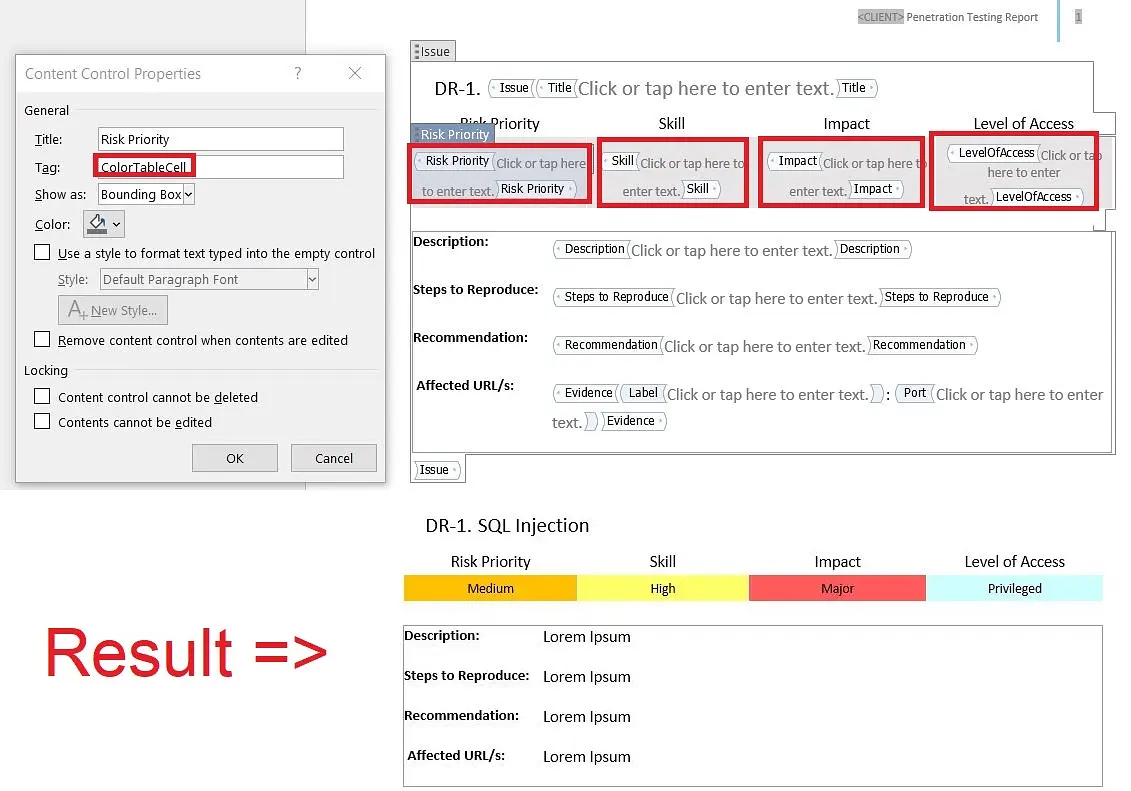
You can place a regular field control (e.g. Rating) inside the same cell alongside the ColorTableCell control to show the value as text while also applying the background color.
ColorFont
Use ColorFont to set the text color inside a content control based on a List field value.
To add a ColorFont control in Word:
- Insert a Rich Text Content Control where you want colored text to appear.
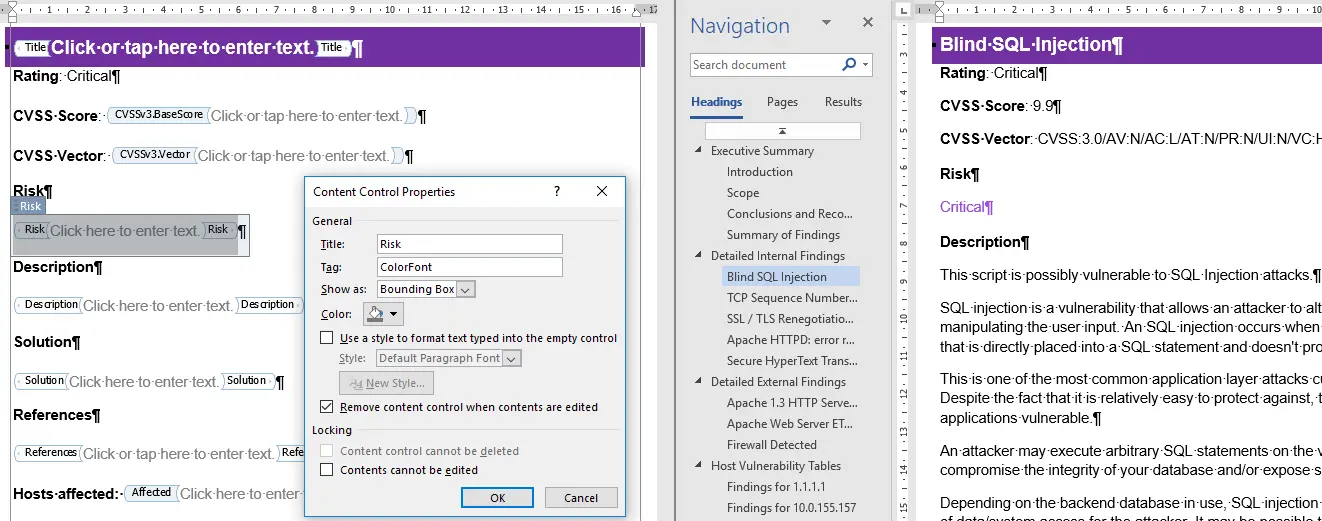
- Open Properties and set the Title to the name of the List Issue field (e.g.
Rating). - Set the Tag to
ColorFont. - Add placeholder text inside the control. On export, Dradis will replace the placeholder and apply the font color.
When no color is applied
Dradis skips color application if:
- The field is not configured as a List type in the Report Template Properties.
- The Issue's field value does not match any value defined in the List field.
- The matched value has no color assigned (or the color is not a valid hex color).
- A
ColorTableCellcontrol is not placed inside a table cell.
Next help article: Text styles and screenshots →