Translate IssueLibrary entries
Translations let you keep one IssueLibrary entry in several languages. Each entry has Shared Content, plus a Translation for each Locale you add. Each project has a Locale, which decides the language its IssueLibrary entries use by default.
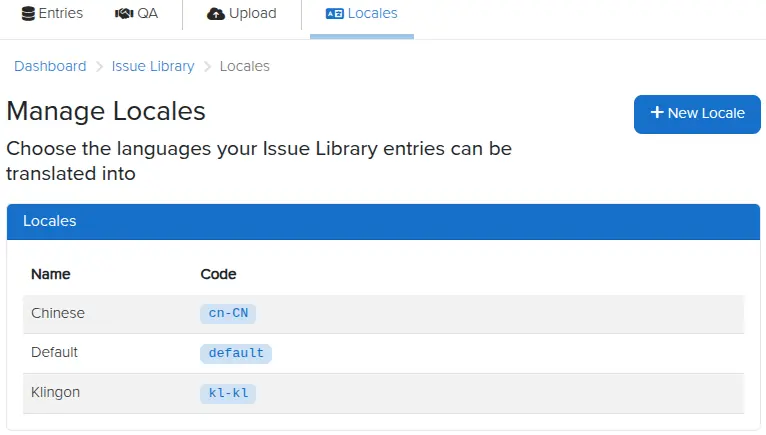
Manage Locales
A Locale is a language your entries can be translated into. Only Administrators can manage Locales:
- In the IssueLibrary, click Locales in the top menu.
- Click New Locale.
- Enter a Name, which is how the Locale is shown to users (e.g.
English (United States)), and a unique Code (e.g.en-US).
The first Locale is the default Locale. You can edit its name and code, but you can't delete it. You also can't delete a Locale that a Translation or a project is using.
Shared Content and Translations
Shared Content applies to every Locale. A Translation overrides it one field at a time, so a Translation only needs the fields that change between languages.
For example, take an entry with this Shared Content:
#[Title]#
Weak password policy

#[Rating]#
High

#[Description]#
Users can choose short passwords that are easy to guess.
And this German Translation:
#[Title]#
Schwache Passwortrichtlinie

#[Description]#
Benutzer können kurze Passwörter wählen, die leicht zu erraten sind.
In the German Locale, this entry has the Title and Description from the Translation, and the Rating High from the Shared Content.
A Translation with no content uses the Shared Content as it is.
Add a Translation to an entry
The entry page shows the Shared Content above a Translations card, which has one tab per Locale, each with its state.
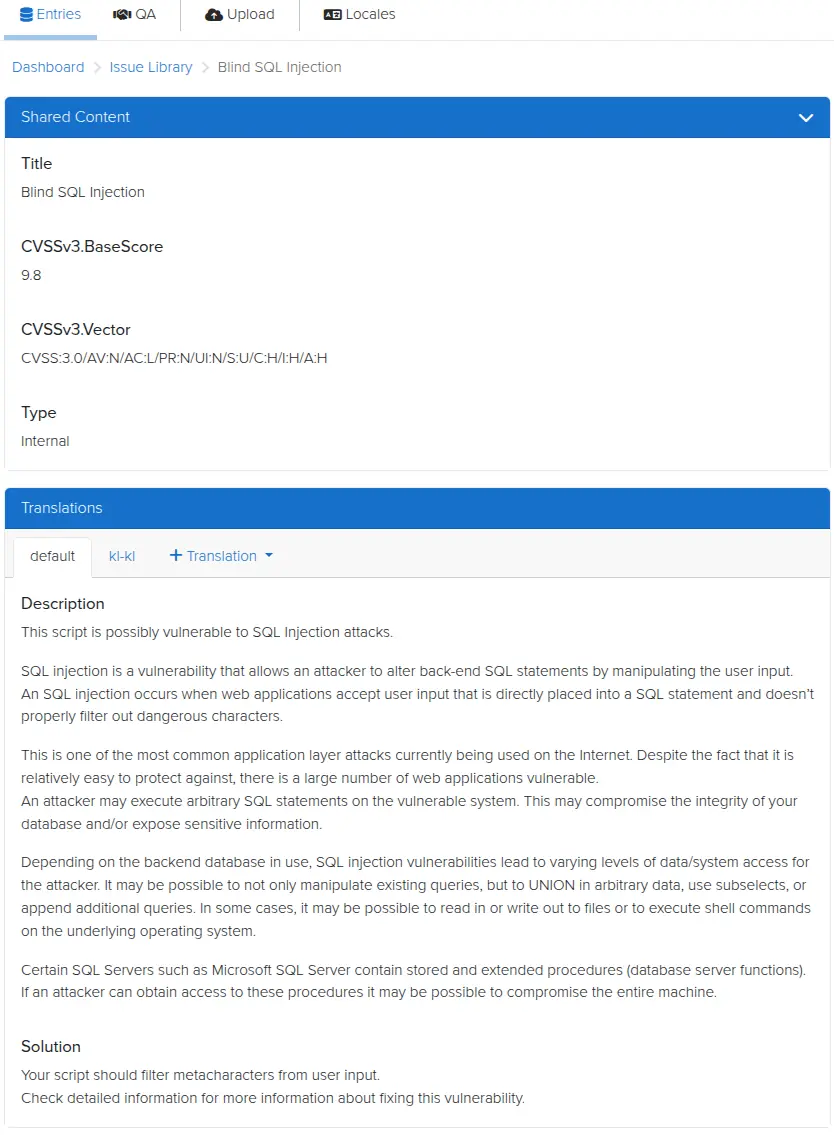
To add a Translation:
- Open the entry and click + Translation, then select the Locale.
- In the new tab, add the fields you want to translate.
- Click the arrow on the save button to set the state of the Translation to Draft, Ready for Review, or Published.
- Click Save [code] translation.
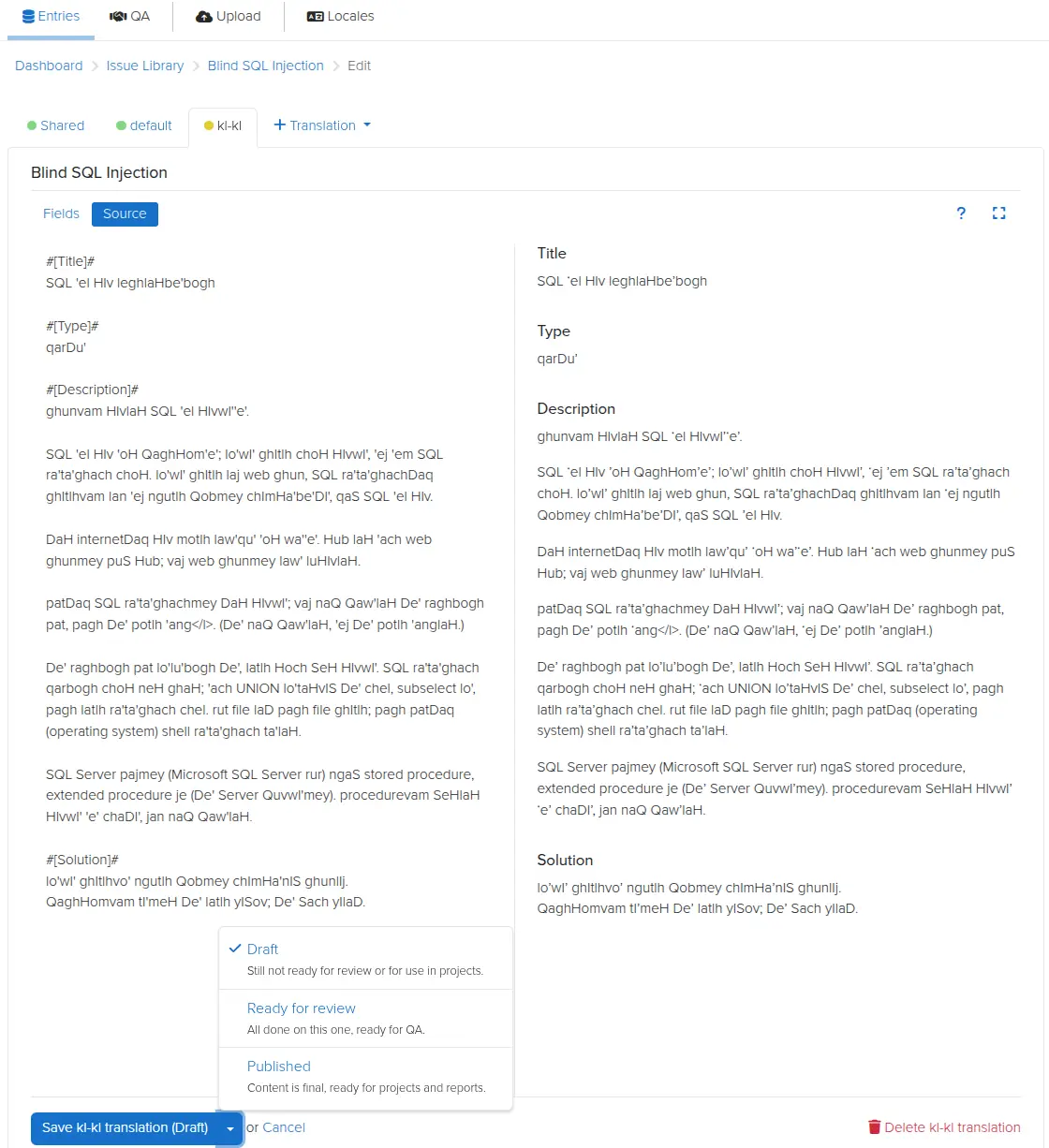
Only Published Translations can be added to a project. To use the Shared Content as it is, publish a Translation with no content. See IssueLibrary Quality Assurance for how to review Translations.
Edit or delete a Translation
Click Edit Entry to open the editor, which has a Shared tab and a tab for each Translation. Each tab saves on its own: Save shared content on the Shared tab, and Save [code] translation on a Translation's tab. A dot on a tab shows when it has unsaved changes.
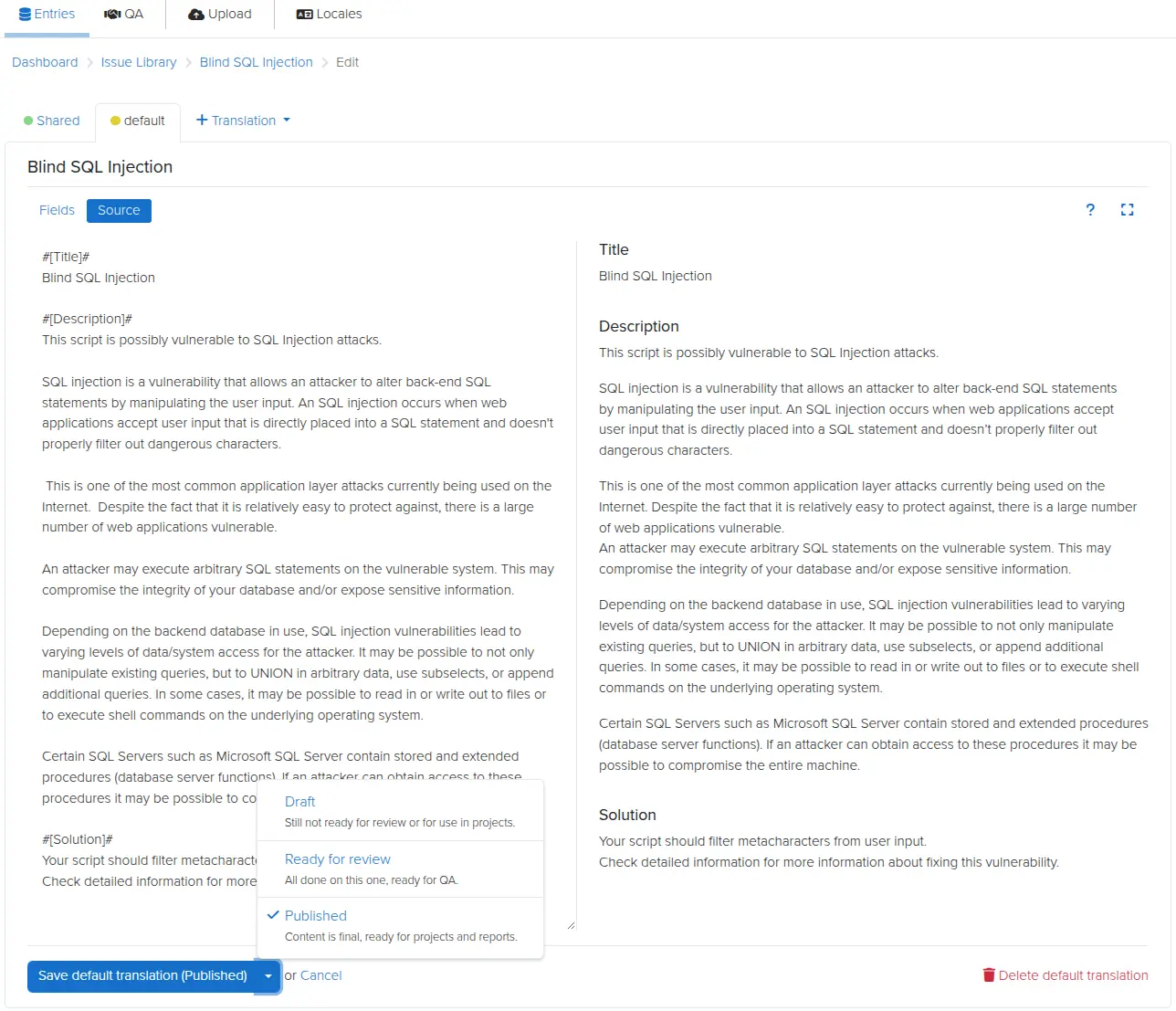
To delete a Translation, open its tab and click Delete [code] translation. This cannot be undone.
Find entries by Translation
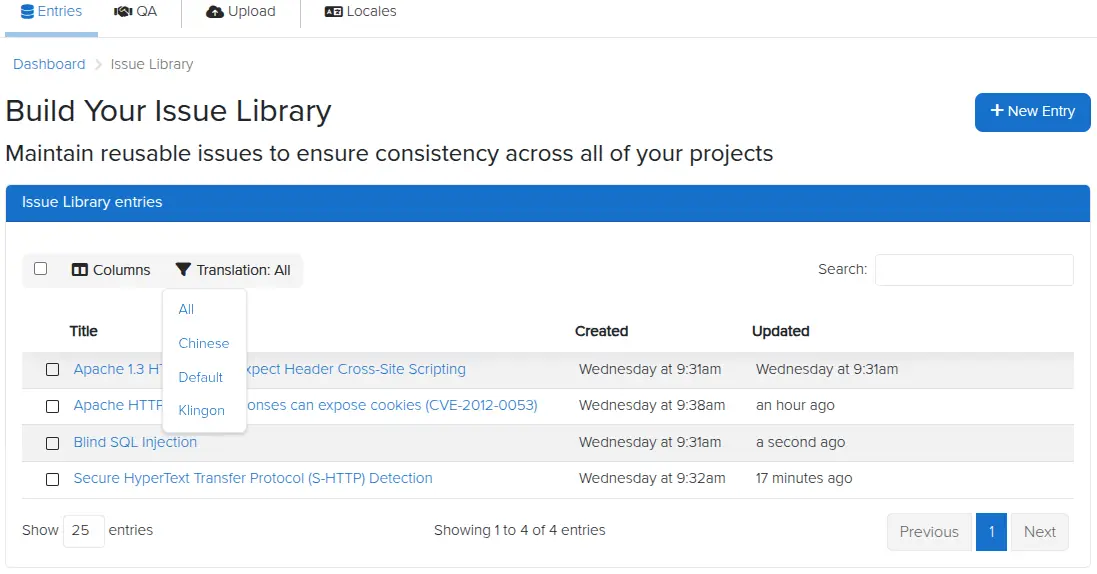
The Translations column of the entries table lists the Locale codes of each entry's Translations. To only show entries with a Translation in a specific Locale, use the Translation button above the table.
Set a project's Locale
To choose the Locale of a project, edit the project, open the Translations tab, and select the Translation locale.
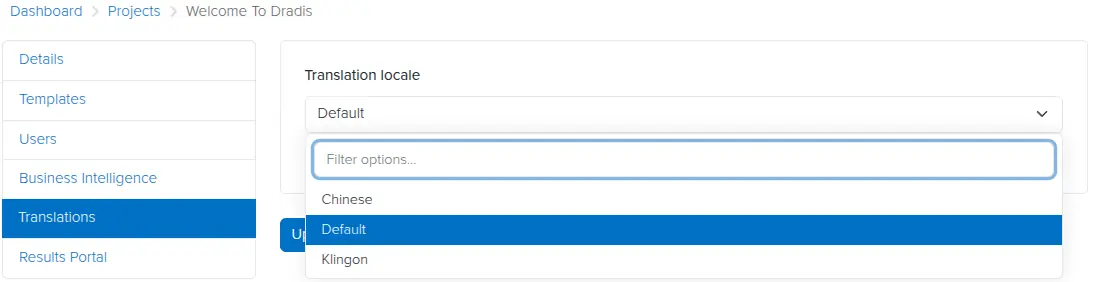
New projects and cloned projects use the default Locale until you change this setting.
The project's Locale is used when you:
- Add an entry to the project, as the Locale selected by default.
- Sync an Issue with its entry, as the Translation to compare the Issue with.
- Send an Issue to the IssueLibrary, as the Locale of the new Translation.
Changing a project's Locale doesn't change the Issues already in the project.
Next help article: Tag your IssueLibrary entries →