Echo Agents
Echo Agents connect Dradis to your configured LLM providers and extend the platform with AI-assisted capabilities. Each agent has a specific purpose and can be enabled or disabled independently. Enable an agent and assign it a provider to start using its features across your projects.
To manage agents, as an Admin user, navigate to Tools › Echo in the navbar and select the Agents tab. You will see all available agents listed, along with their current status and assigned provider. Click Edit next to any agent to configure it.
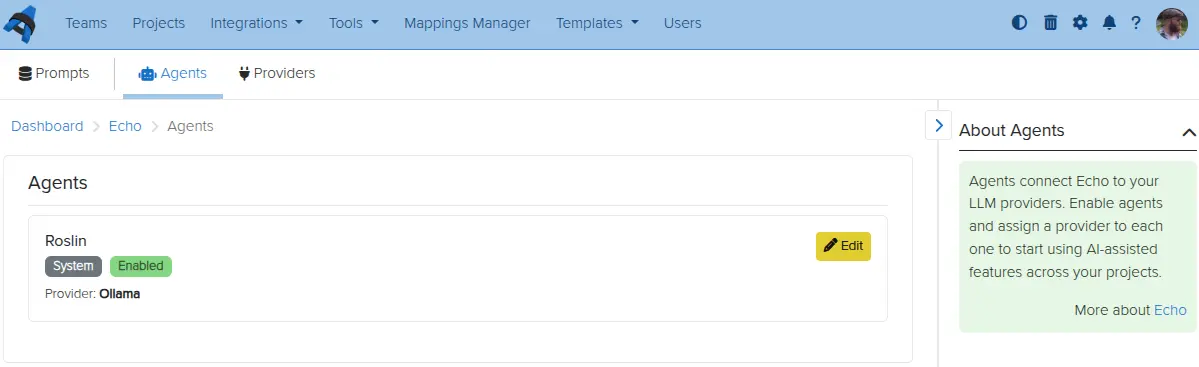
Roslin
Roslin is a writing assistant that provides two independent capabilities:
- AI-assisted writing - summarize, rewrite, or adapt finding content for your audience using a configured LLM provider.
- Grammar and spell checking - detect grammar and spelling errors inline as you work, powered by a local LanguageTool instance.
You can use either capability on its own. Grammar and spell checking does not require an LLM provider, and AI-assisted writing does not require LanguageTool.
Setting up LanguageTool
Grammar and spell checking requires a running LanguageTool server that Dradis can reach. The quickest way to get one running is with Docker:
docker run -d -p 8081:8010 erikvl87/languagetoolOnce the container is running, confirm it is ready by visiting http://localhost:8081/v2/languages in your browser. You should see a JSON list of supported languages.
8081 on your host, which matches Roslin’s default. If you run LanguageTool on a different host or port, use that address when configuring the LANGUAGETOOL_ADDRESS variable below.
Configuring Roslin
On the Agents page, click Edit next to Roslin.
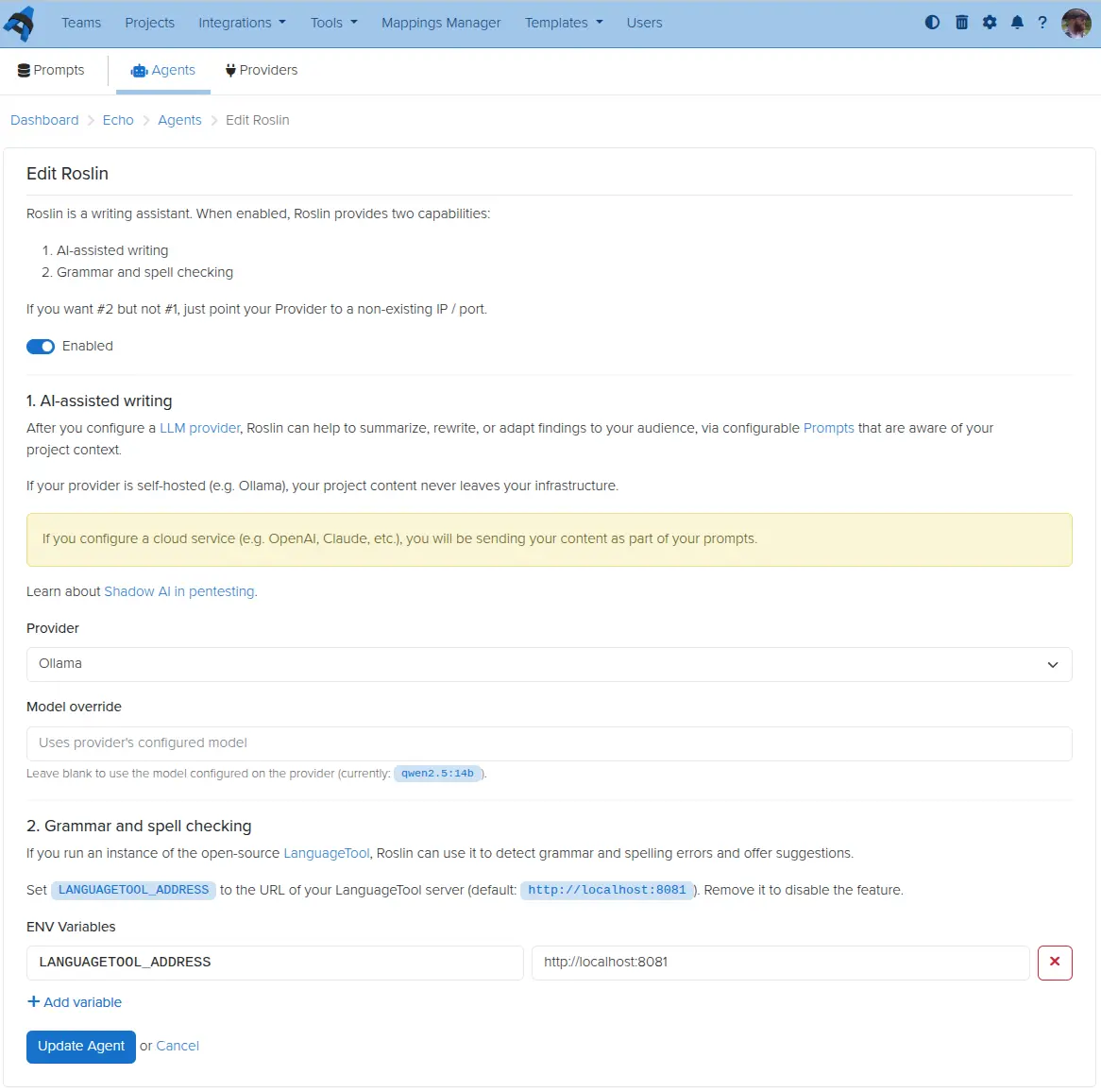
Enabling the agent
Use the Enabled toggle at the top of the form to turn Roslin on. The toggle must be enabled for the Roslin sidebar widget to appear on Issue pages.
AI-assisted writing
To use AI-assisted writing, you need at least one Echo Provider configured. Once a provider exists, select it from the Provider dropdown. If you want to use a different model than the provider’s default, enter it in the Model override field; leave it blank to use whatever model the provider has configured.
If you want grammar and spell checking but not AI-assisted writing, you can leave no provider configured and point only to a LanguageTool server.
Grammar and spell checking
In the ENV Variables section, set LANGUAGETOOL_ADDRESS to the URL of your LanguageTool server. If you followed the Docker setup above, the value is:
http://localhost:8081If LANGUAGETOOL_ADDRESS is not set, grammar and spell checking is disabled.
Click Update Agent to save your changes.
Using Roslin in a project
Once Roslin is enabled, a Roslin widget appears in the sidebar on every Issue page.
Grammar and spell check
When you open an Issue, Roslin analyses the rendered content against LanguageTool and highlights any grammar or spelling errors with an underline. The sidebar widget shows a summary of the results:
- No errors found — the widget collapses and shows a green check mark.
- Errors found — a red indicator appears with a count (e.g. 3 issues found).
Click any underlined word or phrase to open a popover with the error description and one or more replacement suggestions. You can:
- Apply a suggestion — click the replacement text to update the field and remove the underline.
- Dismiss a suggestion — click the dismiss action to hide this specific match without making a change. Dismissed suggestions are stored in your browser and will not reappear when you reload the page.
Once all errors have been resolved or dismissed, the sidebar widget collapses and shows a green check mark.
AI-assisted writing
With a provider configured, you can use the Echo tab on any Issue to run saved prompts against that issue’s content. Roslin uses the provider and model you selected in the agent settings.
Next help article: Dradis Echo Prompts →