Activate your Dradis Instance
The final step! Apply your license to activate your Dradis instance.
Troubleshooting this step: Make sure the VPS is able to reach the activation server at portal.securityroots.com in order to complete online activation. If you're running Docker on a remote host, you may need to open the relevant port in your firewall or security group settings.
To apply your license
Activation is part of the Docker deployment script. Once you have your license key in hand, apply it in the deployment process.
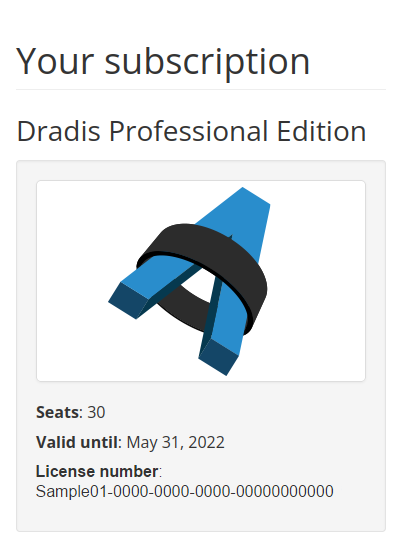
- Grab your license number from the Dradis portal dashboard in the left hand column.
- If you need to re-apply the license (e.g. on subscription renewal) you can apply it again in the web app. Go to
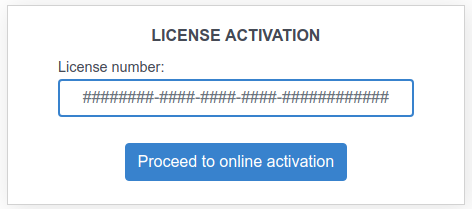
https://[your-hostname]/pro/licenses/online/new. Paste in the license number and click Proceed to Online Activation. - After the license successfully applies, navigate to
/proon your instance and check out your fully activated instance of Dradis Pro!
Offline activation
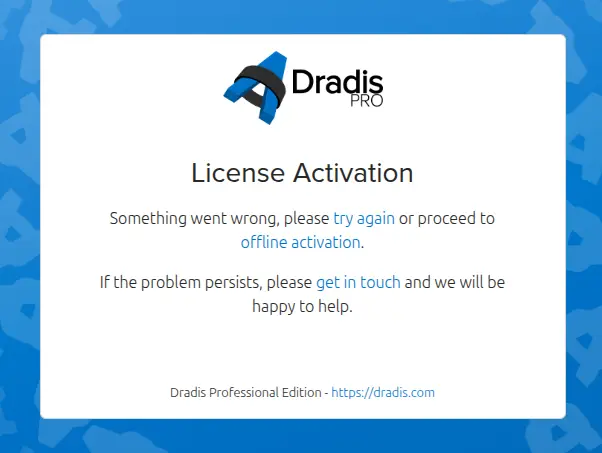
You can activate Dradis offline on your own. First go through the online activation steps above. When online activation fails, you will be prompted with an option to perform an offline activation instead. You can also go straight to https://[your-hostname]/pro/licenses/offline/new if you prefer.
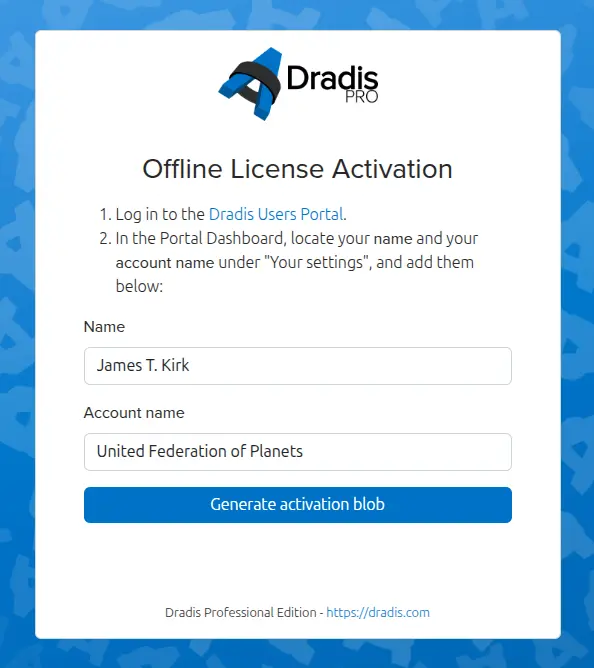
Now open the Dradis portal dashboard in another tab, and grab your name and account name from there - capitalisation and punctuation matter! Paste them into the Dradis tab's fields and click Generate activation blob.
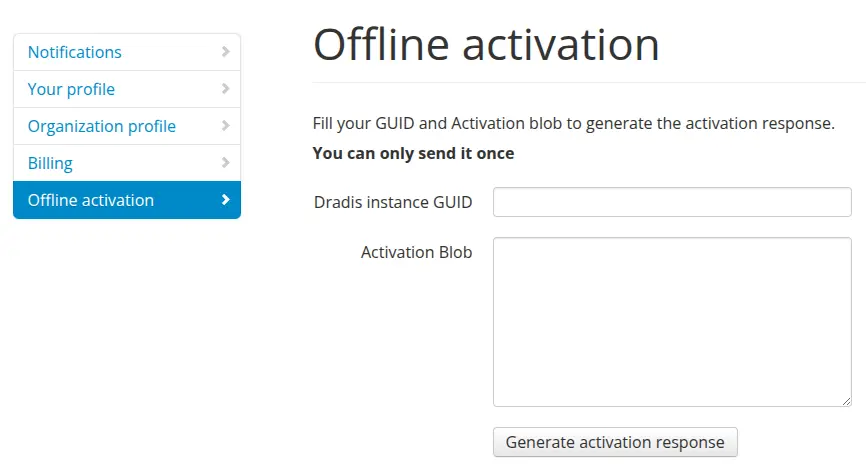
Now in your Users Portal tab, open the Dradis portal offline activation page. Insert the GUID and Activation blob generated in the previous step, then click Generate activation response.
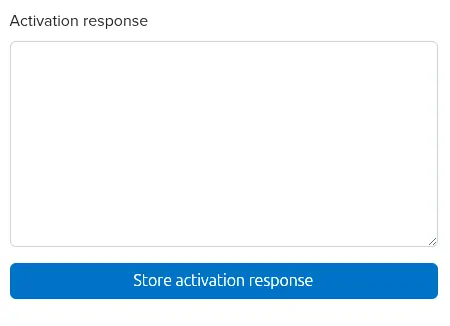
Paste the response from the previous step into the field back in Dradis, and click Store activation response.
You're done! Navigate to /pro on your instance and check out your fully activated instance of Dradis Pro!
Next help article: Next steps →