Remember when we shared a “Year in Review” script that could pull basic stats from your Dradis instance? Well, we heard your feedback loud and clear. You wanted more than a command-line script. You wanted insights that were easy to access, customizable to your needs, and powerful enough to help you make real business decisions.
Today, I’m excited to walk you through what we’ve built: a full-fledged Business Intelligence Dashboard that turns your Dradis data into actionable intelligence.
The Journey from Script to Dashboard
That original Year in Review script was simple but effective. It could tell you how many projects you created, count your Issues by severity, and show you the most commonly found vulnerabilities. But it had limitations. You had to SSH into your instance, run commands, and parse text output. And while it gave you a snapshot of your year, it couldn’t help you understand the why behind the numbers.
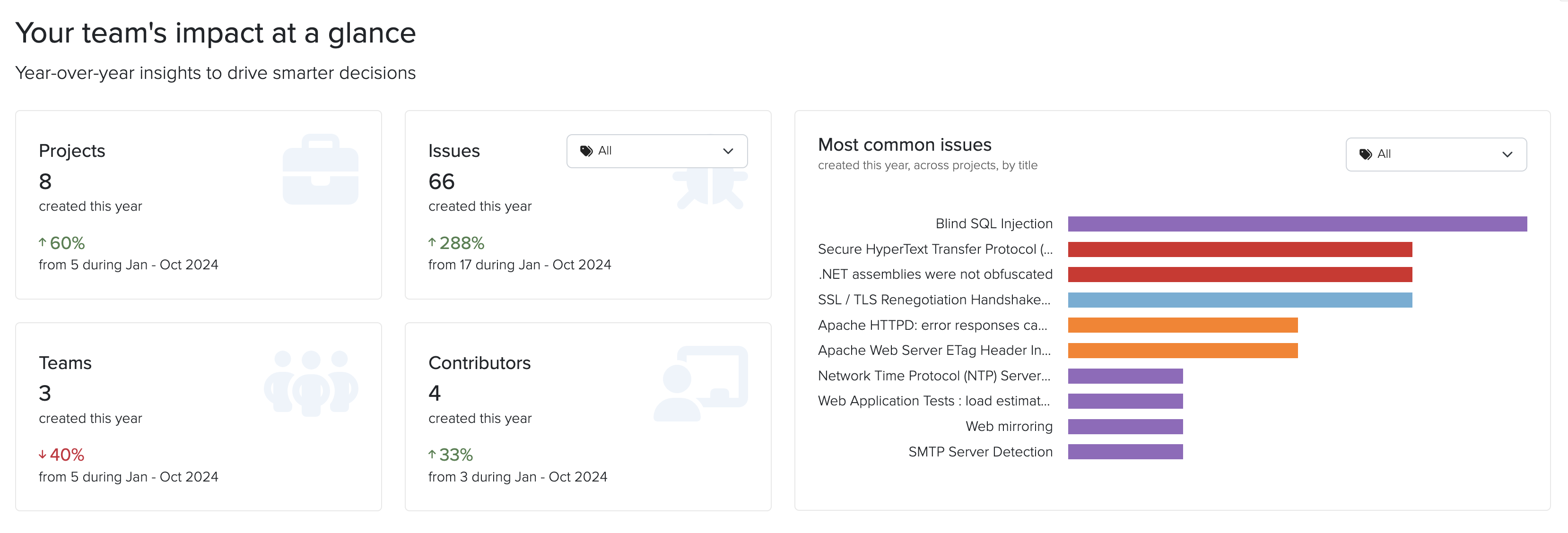
The Business Intelligence Dashboard takes that concept and expands it into something much more powerful. Instead of running scripts, you can now log into Dradis and immediately see:
- Activity summaries comparing this year to last year for Projects, Issues, Teams, and Contributors
- The most common Issues found across all your projects by Title, filtered by Tag
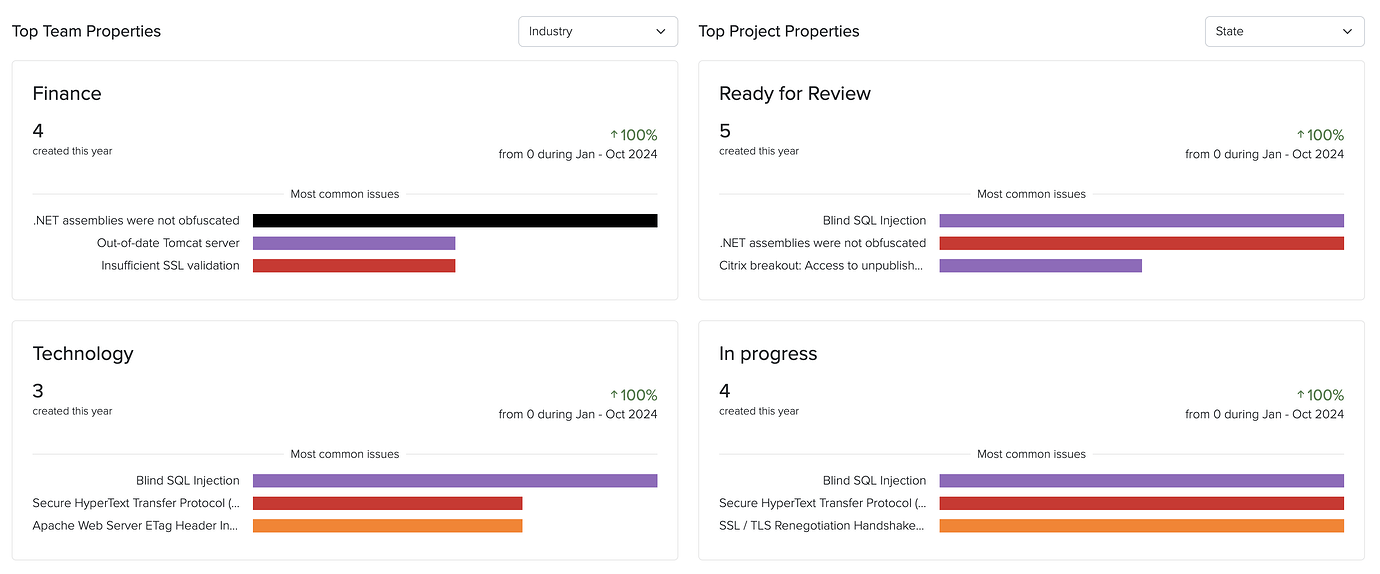
- Custom metrics and trends based on your team and project properties
Custom Properties: The Foundation for Better Insights
The real power of the Business Intelligence Dashboard comes from custom properties. These let you tag and categorize your work in ways that matter to your business.
Team Properties
Want to know which industries you serve most? Or which types of clients are most profitable? Team properties let you define custom fields for your clients. You can create:
- Integer fields for numerical data (revenue, number of employees, etc.)
- String fields for text data (client contact information, notes)
- List fields for categorical data (industry, region, client tier)
For example, you might create an “Industry” property with options like Healthcare, Finance, Retail, and Technology. Once defined, every time you create a new team, you’ll be able to select from these options.
Project Properties
Project properties work the same way, but let you categorize individual engagements. This is where you can track things like:
- Project type (webapp, infrastructure, mobile, cloud)
- Whether a project was under-scoped or over-scoped
- Complexity level
- Testing methodology used
These properties become the basis for answering critical business questions.
Existing Business Intelligence Features
Dradis has other Business Intelligence features beyond those we highlighted above. Once you’ve been collecting data through custom properties, the Dashboard transforms that information into visual insights and searchable metrics.
Automated Overview Charts
Every List property you define automatically generates a visual overview chart. These charts give you an at-a-glance understanding of your business composition. See instantly what percentage of your projects are webapp versus infrastructure, or which industries make up the majority of your client base.

Data Analysis Queries
The Data Analysis sidebar lets you drill down into specific questions. Want to see all teams in the Healthcare industry? Or find every webapp project from the last quarter? Just select the property you want to search, enter your criteria, and get instant results.
The results come back in a customizable table where you can toggle columns on and off to focus on exactly what matters. Each result shows not just the projects or teams that match your criteria, but also their associated Issues and other relevant data.

Trend Analysis: Compare and Learn
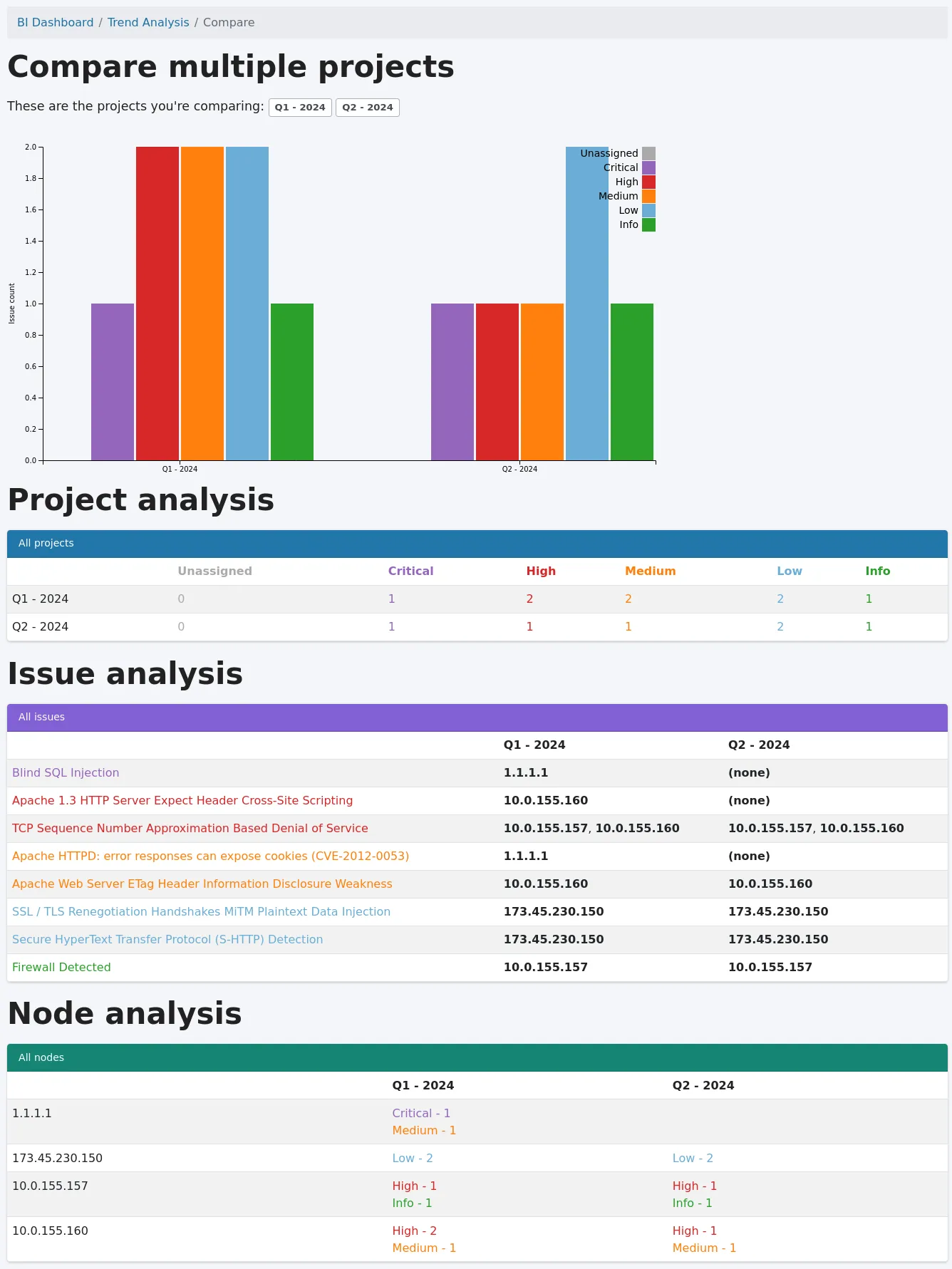
The Business Intelligence’s Trend Analysis feature lets you select multiple projects and compare them side-by-side to identify patterns and differences.
To use it:
- Click “+ Trend analysis” in the sidebar
- Select the projects you want to compare (use the filter to narrow your options)
- Click “Compare!”
The comparison shows you:
- A graph of Issues based on tags across all selected projects
- A project analysis table with Issue counts by tag
- Issue analysis showing which Issues affect which Nodes in each project
- Node analysis displaying Issue counts by tag for each Node
This is invaluable for understanding how similar projects differ, identifying trends over time, or comparing repeat/retest projects.
Answering the Questions That Matter
With the Business Intelligence Dashboard, you can now answer:
What types of projects are you running? Define a “Project Type” property and instantly see the breakdown in your overview charts.
What types of team industries are you serving? Create an “Industry” team property and use Data Analysis to explore the distribution.
Which types of teams are most profitable? Combine revenue properties with industry properties to identify patterns.
What percentage of your projects are under-scoped or over-scoped? Add a “Scope Accuracy” project property and let the Dashboard show you the numbers.
But it doesn’t stop there. The flexibility of custom properties means you can answer questions specific to your business that we never could have anticipated. That’s the beauty of this approach—you’re not limited to our assumptions about what matters. You define what success looks like, and the Dashboard helps you measure it.
What This Means for Your Team
The Business Intelligence Dashboard isn’t just about pretty charts. It’s about making better decisions:
- Resource allocation: Understand which project types require more time and adjust your scoping accordingly.
- Client focus: Identify which industries or client types align best with your expertise and business goals.
- Quality improvement: Track Issue trends across projects to understand where your team excels and where there’s room for improvement.
- Business growth: Use data to make informed decisions about which services to expand, which clients to pursue, and how to position your team in the market.
Getting Started
The new and improved Business Intelligence Dashboard is available now in Dradis Pro v4.19.0 and later. If you’re already using Dradis, navigate Tools > Business Intelligence to start defining your custom properties. If you’re new to Dradis, check out our complete documentation to learn more.
We’ve come a long way from that simple Year in Review script. But the journey isn’t over. We’re continuing to enhance the Business Intelligence Dashboard based on your feedback. What insights matter most to your team? What questions are you trying to answer? We’d love to hear from you.
Want to learn more about the Business Intelligence Dashboard? Check out our support guide for step-by-step instructions.